Using a Contract Change Record to hold Salary Changes
Step 1: Access the employee record
- Look for the employee record that needs updating through the employee search
- Choose the employee record to open it
Step 2: Click on the contract tab
- The contract tab holds the employee's salary information
Step 3: Generate a record for the previous salary
- Press Add
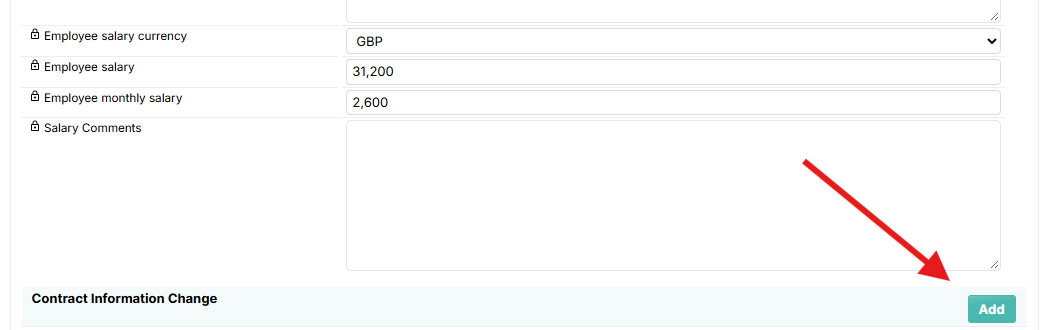
- This will initiate a contract change record - these records denote the contract specifics within a designated date range
- In the Contract change record, input the salary prior to the change and the change date in the end date field.
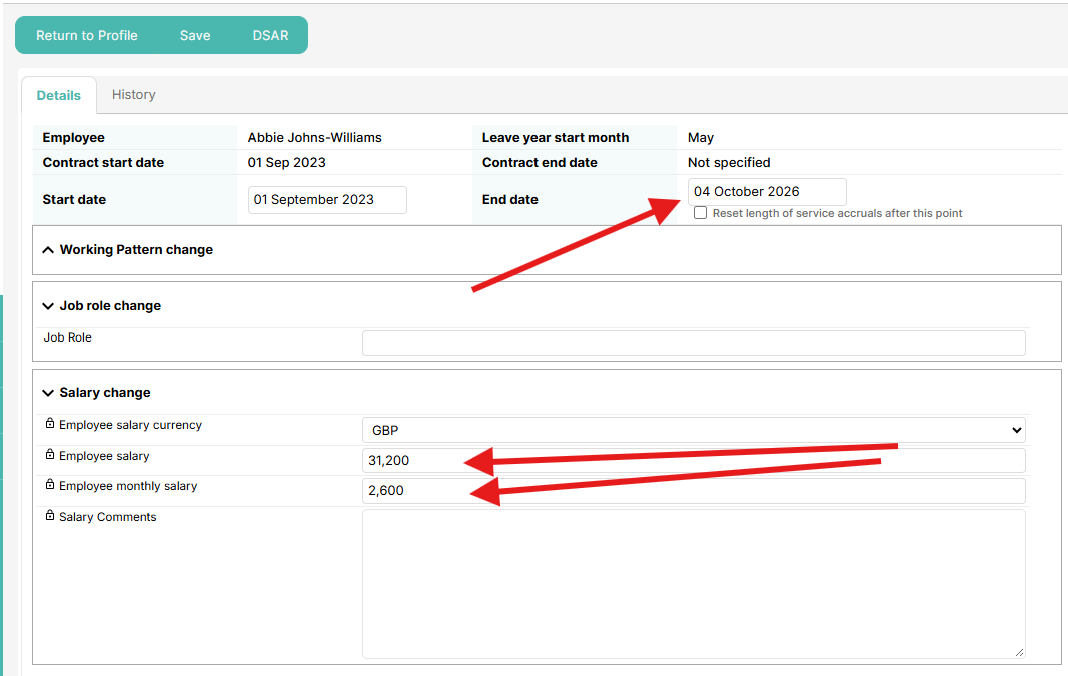
- Press Save, then return to the profile.
- You have successfully created a record to document the historic salary and the period during which the employee earned this salary.
Step 4: Update the employee profile with the new salary
- On the Contract Tab of the employee profile, now enter the new salary details
- Press Save
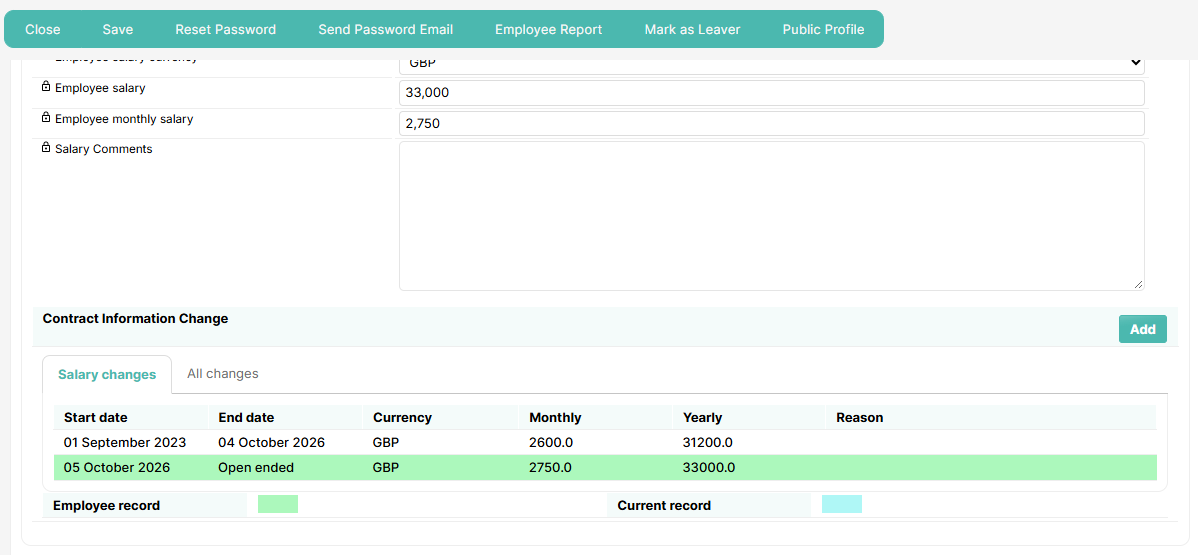
- You should now see a table illustrating the salary changes; the row highlighted in green indicates the current salary as entered directly on the employee profile.
Was this article helpful?
That’s Great!
Thank you for your feedback
Sorry! We couldn't be helpful
Thank you for your feedback
Feedback sent
We appreciate your effort and will try to fix the article